
How to Add an Emergency Contact to Your Lock Screen (iPhone and Android)
If you’re in an accident, or simply lose your phone, the most useful information is locked inside it. An emergency contact on your lock screen — sometimes called an ICE (In Case of Emergency) contact — solves that. It takes a few minutes to set up on iPhone or Android, and it can help both emergency responders and honest finders.
The short answer
- iPhone: open the Health app → Medical ID, add emergency contacts and medical info, and turn on Show When Locked.
- Android: open Settings → Safety & emergency (or Emergency information) — names vary by manufacturer — add contacts and medical info and allow access from the lock screen.
Anyone can then see this information from the lock screen’s emergency option, without unlocking your phone.
Why it’s worth doing
| Situation | How it helps |
|---|---|
| Medical emergency | Responders can contact your family and see key medical info |
| Lost phone | An honest finder can call your emergency contact |
| Travel abroad | A contact who can help if something happens |
| Kids and older relatives | Quick access to a parent or carer |
iPhone: set up Medical ID
- Open the Health app.
- Tap your profile picture → Medical ID → Edit (or Get Started).
- Add medical conditions, allergies, medications and blood type if you want.
- Under Emergency Contacts, tap Add and choose contacts.
- Turn on Show When Locked.
- Tap Done.
To view it on a locked iPhone, a person taps Emergency on the passcode screen, then Medical ID.
Android: set up emergency information
Menu names vary by manufacturer, but typically:
- Open Settings.
- Find Safety & emergency or Emergency information.
- Add medical information and emergency contacts.
- Make sure access from the lock screen is allowed.
It can usually be viewed via Emergency call on the lock screen.
TagTrek turns any item into a smart QR tag. If it's lost, whoever finds it can reach you in seconds — no app, no account, no GPS tracking.


What to include (and what to leave out)
Include:
- One or two emergency contacts who’ll answer.
- Key medical info: allergies, conditions, medications.
- Your preferred language if relevant.
Consider leaving out:
- Your full home address.
- Information you wouldn’t want a stranger to see.
Add a lock-screen message too
Some people set a lock-screen wallpaper with a short message, such as “If found, please call [number]”. If your phone is lost, you can also add a message remotely using Lost Mode (iPhone) or Find Hub (Android). Lost phone: what to do.
When the battery is dead
Lock-screen information doesn’t help if the phone is off. A physical contact method on the case — a sticker or QR tag — lets a finder reach you even when the battery has died. Found a lost phone? How finders can return it.
Set it up for your family too
It’s worth doing the same for children with phones and older relatives. Choose contacts who’ll reliably answer, and make sure kids know that a staff member or police officer can use the emergency screen to call you.
Check it once a year
Update contacts and medical info whenever something changes, and check it’s still visible when locked after major software updates.
The bottom line
Adding an emergency contact to your lock screen takes minutes and can help in an emergency — or when your phone is lost. Set up Medical ID on iPhone or emergency information on Android, choose contacts who’ll answer, and allow access from the lock screen.
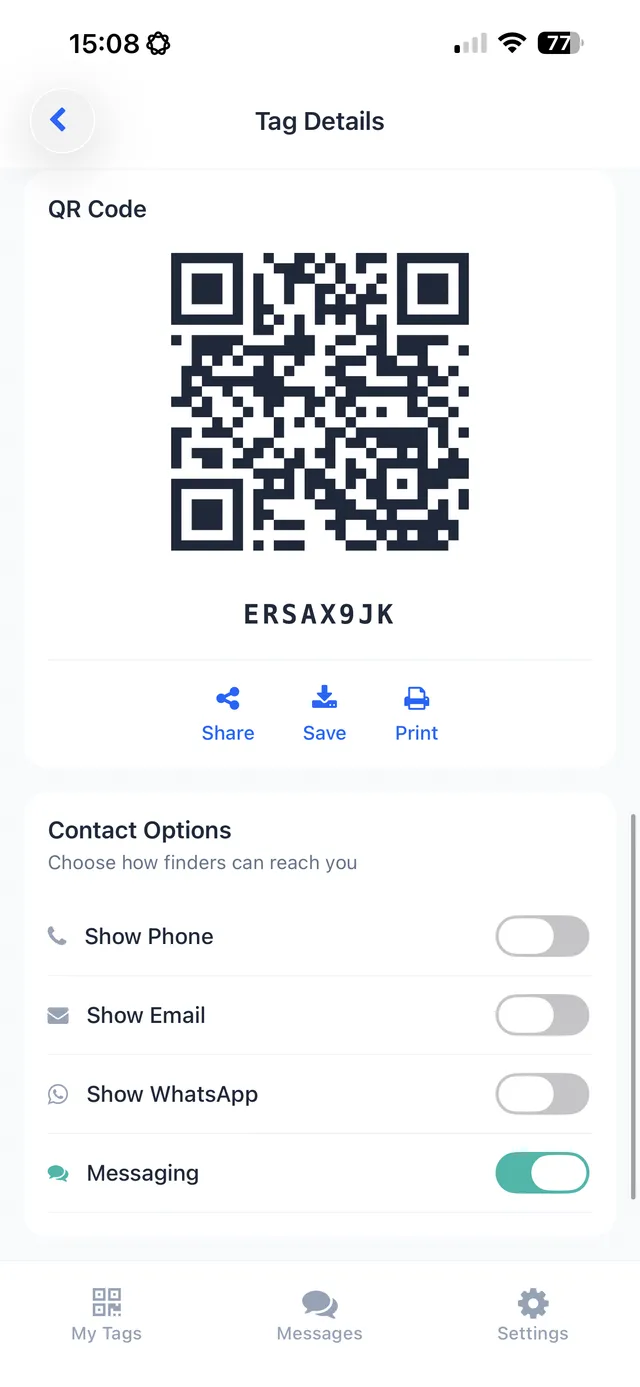
For the moments when the phone is locked and dead, TagTrek adds a physical backup: a small QR sticker on the back of your case that any finder can scan with their own phone to contact you — no app, no account.
Frequently asked questions
How do I add an emergency contact to my iPhone lock screen?
Open the Health app, set up Medical ID, add emergency contacts, and turn on 'Show When Locked'. It can then be viewed from the emergency screen without unlocking.
How do I add emergency information on Android?
Look in Settings for Safety & emergency or Emergency information (names vary by manufacturer), then add medical info and emergency contacts and allow access from the lock screen.
Can a stranger see my emergency contact?
If you allow it on the lock screen, yes — that's the point, so responders or finders can reach someone. Only include information you're comfortable sharing.
Can emergency contacts help return a lost phone?
Yes. An honest finder can use the emergency contact to reach someone who knows you, even if the phone is locked.
Never lose your bag again
TagTrek turns any item into a smart QR tag. If it's lost, whoever finds it can reach you in seconds — no app, no account, no GPS tracking.